
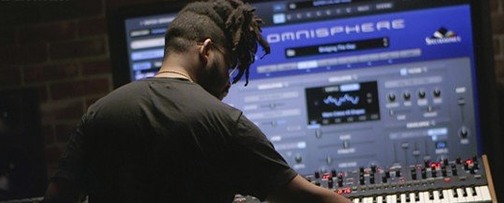
 Download for the office Mac (205 MB)
- Current version
- 3.0.2c
- Software maker
- Spectrasonics
- Language support
- English
- License
- k'ed by Team V.R
- macOS versions
- macOS 11 or later
- Processor type
- Apple Silicon, Intel 64-bit
| System | macOS 11 or later |
|---|---|
| Chip | Apple Silicon, Intel 64-bit |
| Download | 205 MB |
| Earlier versions | 5 on record |
You’ve got a track that needs a sound nothing else can quite make — Omnisphere 3 is the instrument you load up. It’s a software synthesizer and standalone instrument that combines several synthesis types into one plugin, and it works in major DAWs and hosts on both ARM and x86 64-bit Macs.
Get hardware synth control and multiple synthesis types in one interface
Hardware Synth Integration — lets you control Omnisphere 3 from your hardware synth, blending the two sounds together.
Multiple synthesis types — wavetable, granular, FM, and more, all in one interface.
Standalone and plugin operation — run it inside your DAW or on its own.
Mount the disk image and point to the STEAM library first
Once you mount the downloaded disk image and run the standard installation procedure, the STEAM folder with the factory Omnisphere 2.8 library is provided separately — that’s the main sound bank. Take two things slowly right away. First, point Omnisphere 3 to the STEAM folder location in its preferences before you try to load any sounds. Second, spend an hour just browsing the factory presets by category before you start tweaking. The library is deep, and it helps to know what’s already there before you start building from scratch.
If you have a hardware synthesizer or MIDI controller, plug it in and go to the Hardware Synth Integration setup. The initial mapping takes a few minutes, and it’s worth doing early — you can blend your hardware’s sound with Omnisphere 3’s engines, which opens up a lot of texture you cannot get from either alone.
Set category view and adjust polyphony limit for your Mac
Open the browser panel and set the default view to show the factory patches grouped by category rather than by keyword. It saves clicking. Under the preferences, adjust the polyphony limit to match your Mac’s memory — 64 voices is a safe starting point for most machines. Turn on the option to load only the first part of a sample when browsing so you don’t wait for full loads every time you scroll.
If you plan to use Omnisphere 3 as a plugin inside a DAW, enable the multi-output mode early. That way you can route individual sounds to separate tracks for mixing later.
Omnisphere focuses on synthesis engines, unlike Kontakt's sampling
There are a few synthesizer plugins you’ll see alongside Omnisphere 3. Here’s how they differ.
- Native Instruments Kontakt — Kontakt is a sampler, not a synthesizer. It relies on recorded samples and scripting. Omnisphere 3 focuses on synthesis engines and sound design from scratch. If you want to build a sound from oscillators and modulation, Omnisphere 3 is the instrument; if you want to play back a sampled piano library, Kontakt is the tool.
- UVI Falcon — Falcon gives you a modular approach where you wire together oscillators, filters, and effects like building blocks. Omnisphere 3 gives you a more integrated interface with deeper preset libraries and the hardware integration. Falcon is for people who want to patch their own architecture; Omnisphere 3 is for people who want a complete instrument that already has a lot of options ready.
- Arturia Pigments — Pigments combines analog-modeled and wavetable synthesis, but its library is smaller. Omnisphere 3 offers a broader range of synthesis types and the hardware synth integration, which Pigments does not have. Pigments is a good entry point; Omnisphere 3 is the flagship that covers more ground.
Build a layered pad from silence using the browser and MIDI track
Here’s a start-to-finish workflow to create a layered pad sound inside your DAW using Omnisphere 3.
- Open Omnisphere 3 as a plugin on a MIDI track. Select an empty patch so you start from silence.
- In the browser, locate the waveform category and pick a simple analog-style saw wave for the main body. Drag it into Part A of the patch.
- Switch to the granular synthesis engine for Part B. Browse the granular category and choose a short vocal or string sample — something with texture. Set Part B to play at a lower octave than Part A.
- Now add Part C. Choose a pad preset from the Hardware Synth Integration category, using your connected synth as the controller. Let it play a sustained chord.
- In the mixer tab, set Part A’s volume around -6 dB, Part B down to -12 dB, and Part C at -8 dB. Adjust until the layers blend without mud.
- Add a low-pass filter with the cutoff around 800 Hz and a slow filter envelope that opens over two seconds. This keeps the pad gentle when notes start and brings out the high texture later.
- Go to the effects rack and insert a reverb with a two-second decay, mix at 25 percent. Then add a chorus effect set to slow rate, shallow depth, 20 percent mix.
- Save the patch under a new name in your user library so you can call it up later.
This workflow uses all three parts of a patch and blends synthesis types — wavetable, granular, and hardware-driven — into one sound. You can swap the waveform or the granular source for anything else in the library.
Omnisphere 3 runs on macOS 11 and newer, and supports both Apple Silicon and Intel Macs. The interface is in English.
- Current software version is 3.0.2c.
- macOS 11 or newer
- Apple Silicon or Intel 64-bit processor
Questions from the office
Does Omnisphere 3 work on Apple Silicon Macs?
Yes, it supports both ARM and x86 64-bit macOS systems, so it runs natively on Apple Silicon and Intel Macs.
What macOS version do I need for Omnisphere 3?
You need macOS 11 or newer.
Can I use Omnisphere 3 as a standalone instrument?
Yes, it works both as a plugin inside major DAWs and as a standalone instrument.
Installation steps
- Mount the downloaded disk image.
- Run the standard installation procedure.
 Questions and replies
Sign in or set up an account to leave a comment.
No one has commented here yet. If you have used this build, the useful note is where it failed.
Same shelf: VST Plugins
All VST Plugins titles Output Portal
1.2.1 VST Plugins 319 MB
 Nudist Audio Nudistort
1.2.5 VST Plugins 45 MB
 Neural DSP Soldano SLO-100 X
1.0.0 VST Plugins 340 MB
 Neural DSP Parallax X
1.0.0 VST Plugins 179 MB
 Neural DSP Archetype Rabea X
1.0.1 VST Plugins 742 MB
 Neural DSP Archetype Petrucci
1.0.0 VST Plugins 745 MB
 Native Instruments Massive X
1.7.1 VST Plugins 1.6 GB
 Plugin Alliance Brainworx Bundle
2025.06.16 VST Plugins 2.1 GB

