
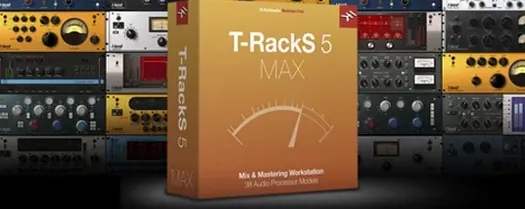
 Download for the office Mac (2.3 GB)
- Current version
- 6.3.2
- Software maker
- IK Multimedia
- Language support
- English
- License
- K'ed by MORiA
- macOS versions
- macOS 10.15 or later
- Processor type
- Apple Silicon, Intel 64-bit
| System | macOS 10.15 or later |
|---|---|
| Chip | Apple Silicon, Intel 64-bit |
| Download | 2.3 GB |
| Earlier versions | 10 on record |
T-RackS handles 192 kHz and 32-bit floating-point audio. That is the ceiling, and most sessions never need it, but it means the processing stays clean even when you push levels or stack modules.
Master a stereo mix in the standalone Mastering Console
- Mastering a stereo mix in the standalone Mastering Console, with the full signal chain visible.
- Inserting individual processors on tracks or buses inside a DAW – Audio Units, VST 3, or AAX – so you can use Dyna-Mu on a vocal bus and EQual on a drum submix without leaving your session.
- Matching the tonal balance of a reference track with Master Match X, then fine-tuning with the other eight processors.
- Managing processor load with the Module Manager, especially useful when you have several instances running.
- Selecting among four dithering options when exporting final masters.
Runs on macOS 10.15 or later, Intel and Apple Silicon
- T-RackS 6.3.2 is 64-bit only and runs on macOS 10.15 Catalina or later. Intel and Apple Silicon are both supported.
- The interface is in English only.
- You get nine processors in the bundle: Master Match, Dyna-Mu, EQual, ONE, and five others. Each can be used separately or chained in the mastering rack.
Set your audio device and preferences first
When you first open the standalone Mastering Console or load T-RackS as a plug-in, a few settings make the daily work more predictable. Open the preferences panel and set your audio device if you are using the standalone version — the default output may not match your interface or built-in speakers. In the same panel, check the sample rate and bit depth match your session; T-RackS handles up to 192 kHz and 32-bit, but there is no reason to run at a higher rate than your project needs.
The Module Manager is worth a look early on. It lists every installed processor and lets you hide the ones you never use. If you only work with three or four modules, hiding the rest keeps the rack uncluttered. You can always show them again later. The dithering option defaults to one of the four choices — set it to the type you prefer for final export, or leave it off until the last step. Dithering should only be applied once, at the very end of the chain.
Redesigned GUI with more space between module controls
Version 6.3.2 did not overhaul the workflow, but a few changes affect how you move through a session. The redesigned graphical user interface is the most noticeable difference — module controls are laid out with more space, and the level meters are easier to read at a glance. If you have used earlier versions of T-RackS, you will find the same processors but in a cleaner arrangement.
- The Module Manager is new to this version. It lets you enable or disable processors globally, which saves time when you are jumping between projects that need different tools.
- Master Match X is included. It analyzes a reference track and applies EQ and level matching to your mix. It is not a set-and-forget tool — you still adjust the result — but it cuts down the guesswork when you want a specific tonal target.
- The 64-bit-only requirement means older 32-bit hosts will not load T-RackS. On the plus side, the plug-in uses memory more efficiently on modern systems.
None of these changes break existing sessions. Old chains load as expected, and the processors sound the same. The difference is in how quickly you can get to the tools you need.
Native Apple Silicon support with no Rosetta needed
T-RackS 6.3.2 requires macOS 10.15 Catalina or later and a 64-bit CPU. It runs on both Intel and Apple Silicon Macs natively — no Rosetta translation needed on M-series machines. The installer is a standard package file; after downloading, run the installer and follow the prompts. The plug-in formats (Audio Units, VST 3, AAX) are placed in the correct system folders automatically.
Because it is 64-bit only, it will not work on macOS versions older than Catalina or on 32-bit hardware. If your Mac is from 2019 or later, you are covered. The language is English only, so the interface text, tooltips, and documentation are all in English. The installer itself is in English as well. There is no multi-language option to toggle.
Disk space is typical for a plug-in suite of this size — the installer places the application, components, and presets in the standard locations. If you plan to use the standalone Mastering Console, have your audio interface drivers installed beforehand.
A workflow: matching a reference track and exporting an album
This is one way to use T-RackS from start to finish. It assumes you have a stereo mix ready and a reference track you like the sound of.
- Open the standalone Mastering Console and load your stereo mix into the file player. Set the sample rate to match your project — 44.1 kHz for CD or 48 kHz for video, for example.
- Load Master Match X as the first module in the chain. Click the reference slot and browse to your reference track. Master Match X analyzes both files and applies EQ and level adjustments to bring your mix closer to the reference. Listen critically; the result is a starting point, not a final answer.
- Add EQual after Master Match X for fine adjustments. Cut or boost specific frequency ranges based on what you hear. If the low end is still loose, add Dyna-Mu for compression. ONE can handle subtle harmonic saturation if the mix feels too clean.
- Arrange the modules in serial order or use parallel routing for parallel compression. The rack supports up to 16 slots, so you have room to experiment.
- When the master sounds right, open the album assembly panel. Import additional tracks if you are mastering a full project. Set the track order and add metadata — track titles, artist name, ISRC codes if you have them. The metadata is embedded into the exported files.
- Choose your export format: WAV, AIFF, FLAC, or others. Select one of the four dithering options if you are exporting to 16-bit. Multi-format export lets you create a 24-bit master for archival and a 16-bit master for distribution in one pass.
- Run the export. The files are written to your chosen folder with the metadata embedded and the track order preserved.
This workflow uses Master Match X for the heavy lifting early, then manual processors for detail work. The album assembly step is optional — you can export a single track just as easily. If you prefer working inside a DAW, the same chain can be built as plug-in inserts on the master bus, though album assembly and multi-format export are only available in the standalone Mastering Console.
- macOS 10.15 Catalina or later
- 64-bit CPU and operating system
- Intel or Apple Silicon
- Interface language: English
Questions from the office
Can I use T-RackS processors on individual tracks in my DAW?
Yes. Each processor works as an individual plug-in in Audio Units, VST 3, or AAX format, so you can insert them on single tracks or buses.
Does T-RackS support Apple Silicon natively?
Yes. It runs on both Intel and Apple Silicon Macs under macOS 10.15 or later.
What is the maximum sample rate T-RackS can handle?
It supports floating-point processing up to 192 kHz and 32-bit.
Installation steps
- Download the installer file.
- Run the standard installation procedure and follow the on-screen instructions.
 Questions and replies
Sign in or set up an account to leave a comment.
No one has commented here yet. If you have used this build, the useful note is where it failed.
Same shelf: VST Plugins
All VST Plugins titles Synapse Audio The Legend HZ v2.0.2.R1
2.1 VST Plugins 472 MB
 Supertone Air
1.0.1 VST Plugins 408 MB
 Superior Drummer
3.4.4 VST Plugins 625 MB
 Steinberg SpectraLayers Pro
13.0.20 VST Plugins 3.9 GB
 Spire
1.5.19 VST Plugins 158 MB
 Sound Particles Density
1.1.2 VST Plugins 394 MB
 Sonic Academy KICK
1.1.8 VST Plugins 358 MB
 Tone Empire EDYN
1.0.2 VST Plugins 198 MB

